
MAF (Matter and Form) THREE
Introduction
This 3D scanner is used to take photos of objects from many angles and combine them into a mesh that can be imported into any standard 3D editing software. It can include color data, UVs, and exports high density meshes. This tool comes with a turntable to effectively capture small objects. Capturing large objects will take more manual involvement to get the images required.
Located behind the front desk.
Notes
The THREE comes built in with a camera, computer and software to manage your 3D scans. The software is accessed via a web interface transmitted over wifi, so it is recommended that the user brings their own laptop or mobile device with wifi capabilities. The desktop computers at protohaven do not have wifi capabilities, and may take additional setup to connect to the scanner.
No computation is done on your device and it requires no installs, it only needs to be able to run a modern web browser and download files (if you want to save your scans).
Safety & Care
The THREE is a precision machine that carries more risk of damage from you than risk of damage to you.
- The main scanning component is an entire computer, and it is important to take care handling it gently
- The included tripod is not the most stable, so ensure that it is secure and watch elbows and rotating objects to avoid knocking it over
- Do not press on the turntable, or scan exceptionally heavy items
- Keep the work area free of debris, dust and grime
- Watch out for power cables and other dangling components. Be mindful of others using the space.
Use
Official tutorial/walkthrough: https://www.youtube.com/watch?v=EzM5n-IZTg0
Official product help pages: https://matterandform.zendesk.com/hc/en-us/categories/28126481059341-THREE
Materials
Some surfaces do not effectively 3D scan. Trying will not damage the cameras, but you may not get a good result.
- Very shiny surfaces, such as mirrors, metals, glossy plastics
- Transparent or semi-transparent surfaces, such as glass, clear plastic, gemstones
- Very dark colors
- Moving objects (a hamster, a pinwheel)
There are some techniques to paint or powder uncooperative materials, if you must scan them.
Parts of the Tool
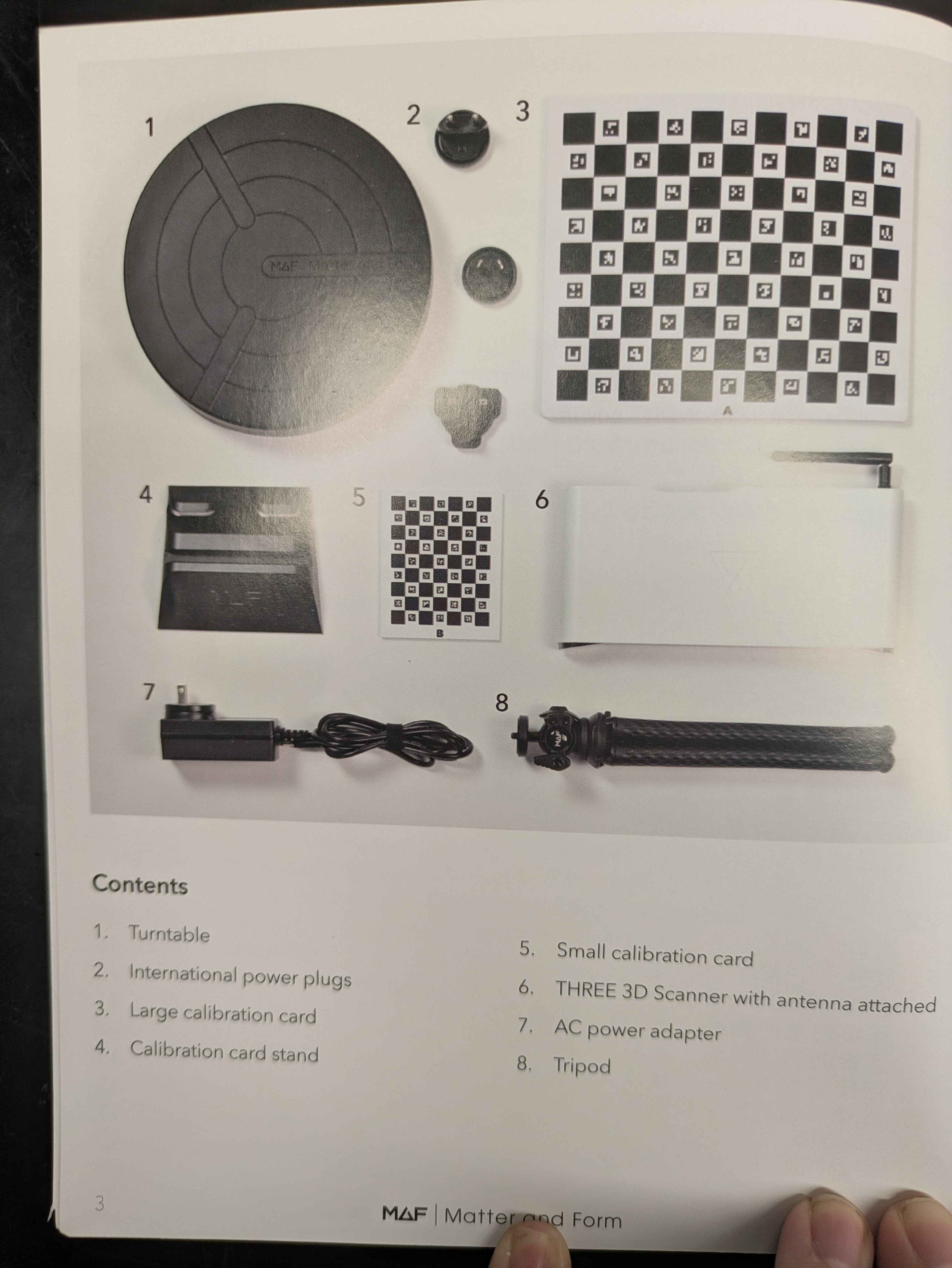
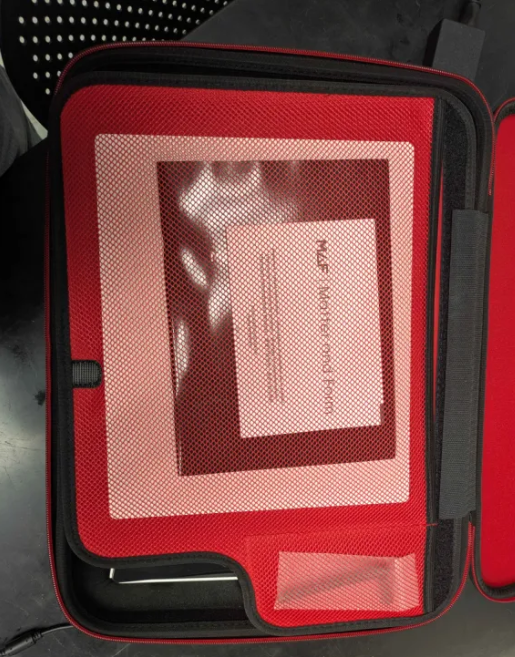
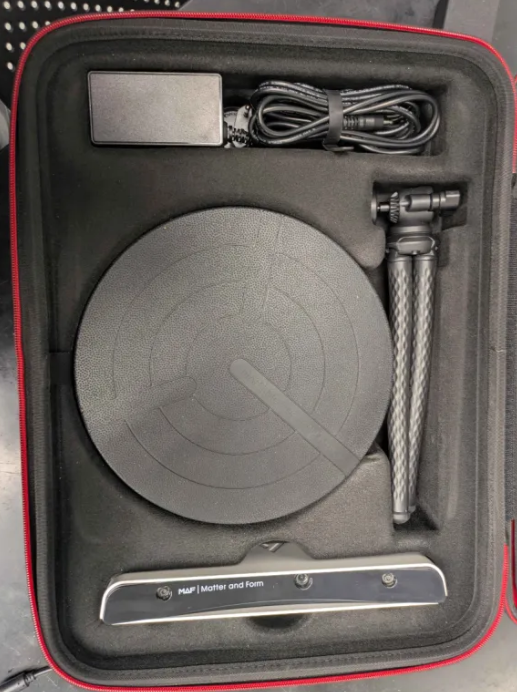
Basic Operation
Setting Up
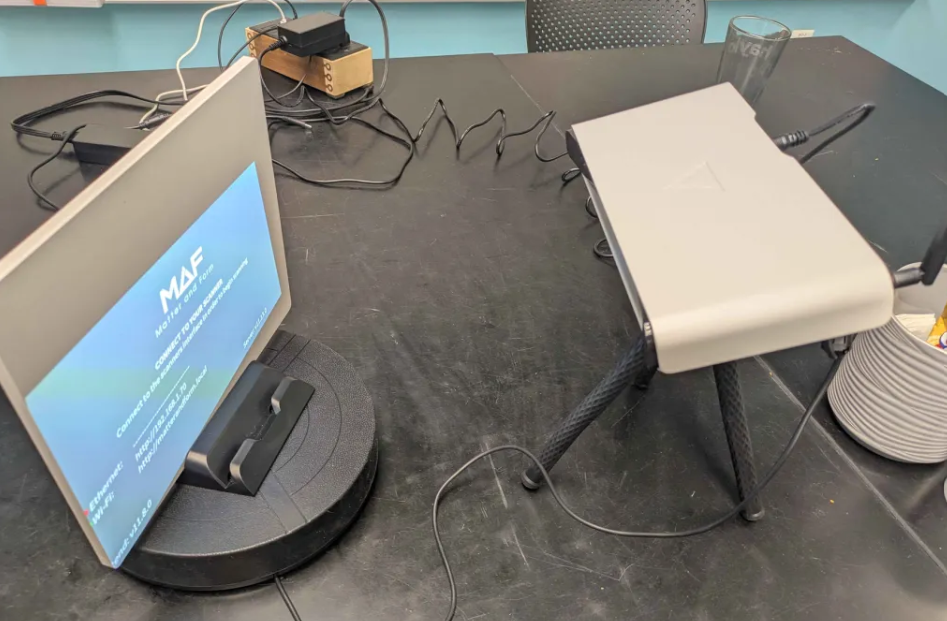
- Attatch the scanner onto the tripod and the antennae onto the scanner.
- Plug in the scanner to an outlet, and the turntable to the scanner
- Press the red power button to turn on the scanner
- Enter the address shown into your browser to access the scanner software
- The software should walk you through the scanning process
Cleaning Up
- Wipe down any dust with a dry paper towel
- Replace all components back in the box they came in
- REMOVE THE ATTENEA before putting the scanner back in the box
- Make sure the manual returns to the box as well
- Return the box to the Tech at the front desk
No Comments