
Dye Sublimation Printer Tool Tutorial
Dye sublimation is a digital printing technology that uses heat transfer to apply an image to the intended substrate. Also referred to as digital sublimation, the process is commonly used for decorating apparel, signs and banners as well as other items with sublimation-friendly surfaces.
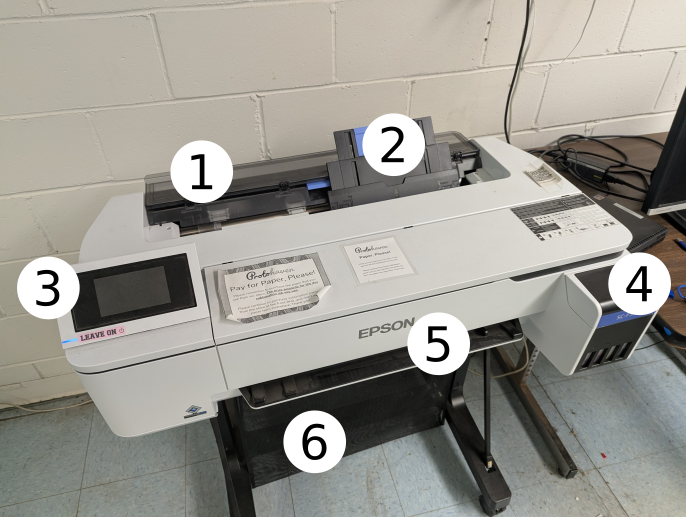
- Roll paper holder - only use this when printing off a dye sublimation roll
- Sheet holder - use this when printing with dye sub sheets (purchased at the front desk)
-
Control Panel - touchscreen interface with commands to check the printer status
-
Ink tank level display (Cyan, Magenta, Yellow, Black)
-
Outfeed - this is where the printed sheets come out.
-
Catch tray - pull this out if printing many sheets at once.
Safety
Do not remove any screws or covers.
Do not Power Off the Printer.
Verify your substrate is heat-safe before applying heat.
Common Hazards
Incompatible Paper can cause ink to bleed through and damage the printer head.
-
Members must use Protohaven-Supplied Sublimation Paper or make a Special Setup Arrangement with Protohaven Staff.
Blockage and/or Overheating
-
The printer must remain powered on to allow for an auto-maintenance cycle
-
The air vent must be free of obstacles at all times to prevent overheating
-
The tray cover must be properly closed
-
Any paper loaded into the tray must be free of dust and particulate
Burns & Fire - Once printing is complete, a heat press must be used to vaporize the ink and transfer the image to the final material. At this stage, burns are a significant hazard.
-
Avoid contact with any heated elements associated with sublimation process
-
Ensure the work area is clear before pre-heating
-
Do not leave a heat press unattended until it has cooled down
Permitted Materials
For general use, members must use Protohaven-Supplied Sublimation Paper. This can be purchased at the store front at 8 ½” x 11” and 11” x 17” dimensions. This covers ink and maintenance costs while ensuring compatibility with the printer.
To use your own paper for larger production runs, please make a Special Setup Arrangement with Protohaven Staff to ensure compatibility and arrange ink costs.
Setup
-
Ensure the USB cable between the Printer and PC is connected
-
Verify the Printer is Powered On
-
Power on the Computer
-
Import your file to Sawgrass Print Manager
-
Set the substrate, paper size, and color profile in Sawgrass Print Manager
Choosing A Substrate
Sublimation Ink must have a polymer, polyester, or polyester blended fabric in order to properly bond. There are more than 1,000 sublimation-ready “blanks” available, meaning they already have a polymer coating. This includes:
-
Acrylic & Hard Plastics
-
Ceramics
-
Glass
-
Metal
-
Slate
-
Wood
To bond to cotton fabric and natural materials, a special transfer paper or EasiSubli solution is needed.
Epson Edge Print
See the official guide for instructions on how to print using Epson Edge Print software.
Color Output
Color management is an important aspect for all forms of digital printing. In terms of sublimation, there are several factors that can affect the color including the printer, the ink, the paper and the substrates.
Epson Edge Print addresses these issues and provides tools to ensure the accuracy of the color output.
Basic Operation
-
Ensure the printer is powered on
-
Confirm Ink levels are usable
-
Load Protohaven-supplied Sublimation Paper
-
Test Print one sample if printing multiple copies to ensure quality of production
-
Print Final production
-
Trim to your artwork
-
Use heat press to transfer to substrate
-
Cleanup
Cleanup
-
Clear Printer and Work Area of any unused material
-
Reset any modified computer settings to default
-
Power off the Computer
-
Ensure the printer remains powered on so auto-maintenance cycle can run
-
Note dwindling ink levels, maintenance needs, or concerns on the tag and at protohaven.org/maintenance
Scrap Breakdown
There is one blue scrap bin reserved for vinyl waste and several trash bins in the studio. Maintaining these are a shared, communal responsibility.
When you notice the scrap bins are full, it’s time to take it to the dumpster out back. Feel free to enlist a helping hand.
If you notice valuable material while emptying the bins, use your judgment to selectively save a few pieces or take it home for your personal use.
Troubleshooting
Banding is usually caused by a blockage in the print head preventing the ink from being properly dispersed to the paper. It can also be caused by low ink levels.
-
Perform a nozzle check. If blockage is found, perform a head cleaning. These functions can be accessed via the control panel on the printer or through Sawgrass Print Manager.
-
Check the ink levels on the Printer Control Panel. Update the physical maintenance cards and make a maintenance request to notify staff if ink levels will need to be replaced soon.
www.youtube.com/watch?v=RJlgCszW7_s
Special Setups
User-Supplied Paper
For general use, members must use Protohaven-Supplied Sublimation Paper.
To use your own paper for larger production runs, please make a Special Setup Arrangement with a Protohaven Staff Member to ensure compatibility and arrange ink costs.
Complex Cuts
Dye Sublimation is a versatile printing process that allows you to get extremely creative with your work! Combining your use of the Printer with other tools is what will help you push the boundaries.
Printing registration marks in your artwork will allow you to make highly repeatable, complex cuts at the Vinyl Cutter, Laser Cutter, or CNC Router once your artwork is sublimated to new material.
Printing on Dark Tones
Neenah Ink-Jet Opaque Sublimation Transfer Paper will allow you to print vivid colors on dark tones
Cotton Substrates
Easy Subli & Special Sublimation Transfer Paper can be used to print onto natural materials like Cotton Fabric.
No Comments