
Tool Tutorial
The kiln is a custom made electric kiln with a programmable PID temperature controller.
Safety
- Do not leave the building with the kiln running.
- No overnight programs are permitted.
Common Hazards
- Burns or fire from heat exposure, touching hot parts of the oven or workpiece
- Smoke and fumes due to contaminants, inadequate ventilation
- Shrapnel from rapid temperature shocks in brittle materials (e.g. glass) or wet materials (e.g. ceramic that isn't bone-dry)
- Damage to the interior of the kiln from heating fusible workpieces without proper technique
- Damage to refractory (scraping against workpiece, thermal shock, slamming the door etc.)
- Damage to the kiln heater system from prolonged operation at the max temperature
- Pinching/crushing on the door latches
Care
- Minimize the amount of time with heating at high temperatures to prolong life of the heating elements.
- Shut the door gently to prolong life of the door gasket and fire bricks.
Use
Simple Ramp and Soak Program
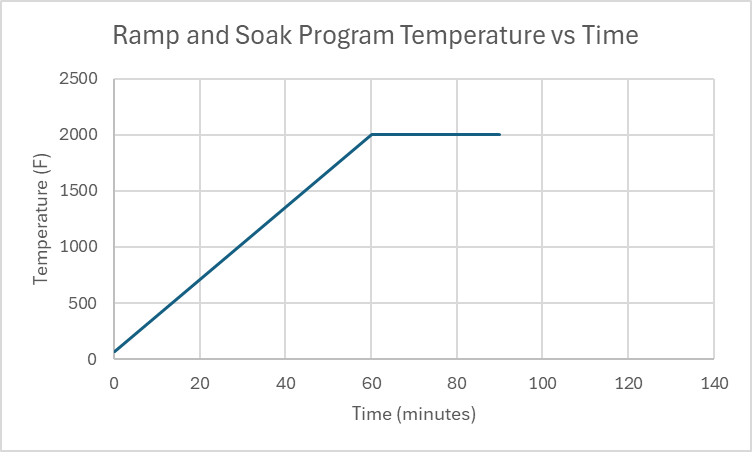
This program ramps from room temperature (68 F) to 2000 F over 60 minutes, holds temperature at 2000 F for 30 minutes, then the program stops and cools to ambient. A plot of time vs temperature should look like this:
|
Note: This is IDEAL |
Here is the data for what actually happens:
|
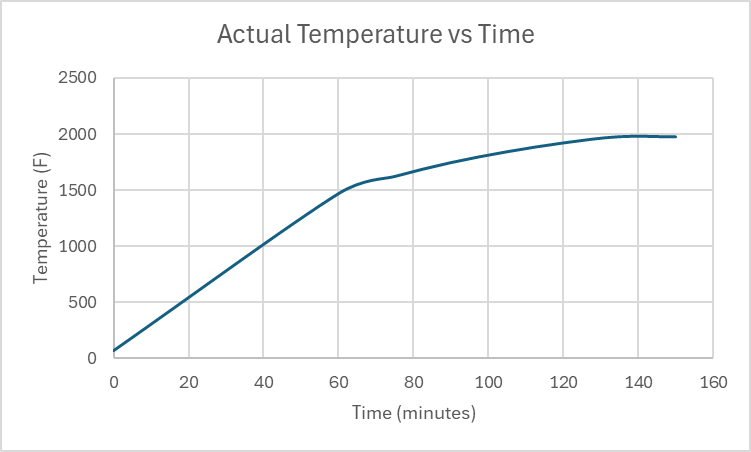 |
Note that you can program the controller to do impossible tasks. Doing this will prevent the controller from executing commands as programmed. In this example, there were two problems:
- The programmed heatup rate was (2000-68)F / 60 min = 32.2 F/min, but the absolute maximum average heatup rate that the kiln can provide in this temperature range was only 23.38 F/min.
- The program called for soaking at 2000 F for 30 minutes, but the kiln never reached 2000 F to start the soak, so the program ran for 150 minutes (before it was shut down manually) rather than the 90 minutes it was programmed to run.
Program Explanation
Ramp: Using the program above as an example, you can program a ramp by setting the temperature for C1 and C2 as different values, then at the end of the time period set for C1, the controller will change the setpoint heating to be at temperature C2 by the end of the time set for C1.
Soak: Just as in the ramp program, once the temperature setpoint for C2 is reached the controller looks ahead to the next temperature setpoint to figure out what needs to happen next. In this example, the temperature setpoint for C3 is the same as the temperature for C2, so the controller will not adjust the temperature setpoint for 30 minutes (the time C2 is programmed to run for).
Stop: the time "-121" stops the program and puts the controller in standby at step 1:
Summary:
| Command type | Temperature | Time |
| Ramp | C[a] =/= C[a+1] | Duration of the ramp in minutes |
| Soak | C[b] == C[b+1] | Duration of the soak in minutes |
| Stop | Final desired temperature requiring temperature control |
Calculated via: (30 * 4[Stop event variable] + NextStep) |
Other Example Programs
Here is a program that might be used to anneal steel (temperatures are approximate, but are used to determine timing):
| Temperature (F) | Time (minutes) | Explanation | |
| C1 | 68 | 60 | Ramp up to 1450 F |
| C2 | 1450 | 30 | Hold at 1450 F |
| C3 | 1450 | 630 | Ramp cooldown to 1000 F |
| C4 | 1000 | -121 | End of program |
Normalizing steel:
| Temperature (F) | Time (minutes) | |
| C1 | 68 | 70 |
| C2 | 1550 | 30 |
| C3 | 1550 | -121 |
Known Heatup and Cooldown Rates:
Use these to determine program step times.
Heatup Rates: These are the maximum possible cooldown rates.
| Temperature | Time (min) | Time btween Points (min) |
| 100 | 0.0 | 0.0 |
| 200 | 2.6 | 2.6 |
| 300 | 4.8 | 2.3 |
| 400 | 7.0 | 2.2 |
| 500 | 9.3 | 2.3 |
| 600 | 11.9 | 2.5 |
| 700 | 14.3 | 2.4 |
| 800 | 17.2 | 3.0 |
| 900 | 20.5 | 3.3 |
| 1000 | 24.3 | 3.8 |
| 1100 | 28.6 | 4.3 |
| 1200 | 33.7 | 5.0 |
| 1300 | 39.6 | 6.0 |
| 1400 | 46.8 | 7.1 |
| 1500 | 54.6 | 7.9 |
| 1600 | 64.5 | 9.9 |
| 1700 | 75.8 | 11.3 |
Cooldown Rates: These are the maximum possible cooldown rates.
| Temperature | Time (min) | Time btween Points (min) |
| 1700 | 0.0 | 0.0 |
| 1600 | 1.7 | 1.7 |
| 1450 | 6.2 | 4.5 |
| 1400 | 8.2 | 2.0 |
| 1300 | 13.7 | 5.5 |
| 1200 | 21.0 | 7.3 |
| 1100 | 30.0 | 9.1 |
| 1000 | 42.5 | 12.5 |
Tooling
- Personal temperature measurement device, if desired. A type-K thermocouple is used for control and display purposes, which has a standard accuracy of approximately +/- 4 degrees F.
Materials
The kiln does not have active ventillation, as such, materials that produce fumes when heated are not permitted.
Prohibited materials include but are not limited to:
- Polymers / Plastics of any kind
- Oil covered metals (degrease before heat treatment)
- Zinc-bearing metal alloys - including brass, bronze, Zamak and "pot metals"
- Radioactive metal alloys
- Combustible materials
- Rubber
- Wood, paper, cardboard, MDF
- Foam
- Textiles or fibers
- Wax
- Painted, coated or varnished objects
- Adhesives
- Lead or lead containing materials
- Sealed or hollow containers
- Materials that can melt onto heating elements
Parts of the Tool
Kiln Anatomy
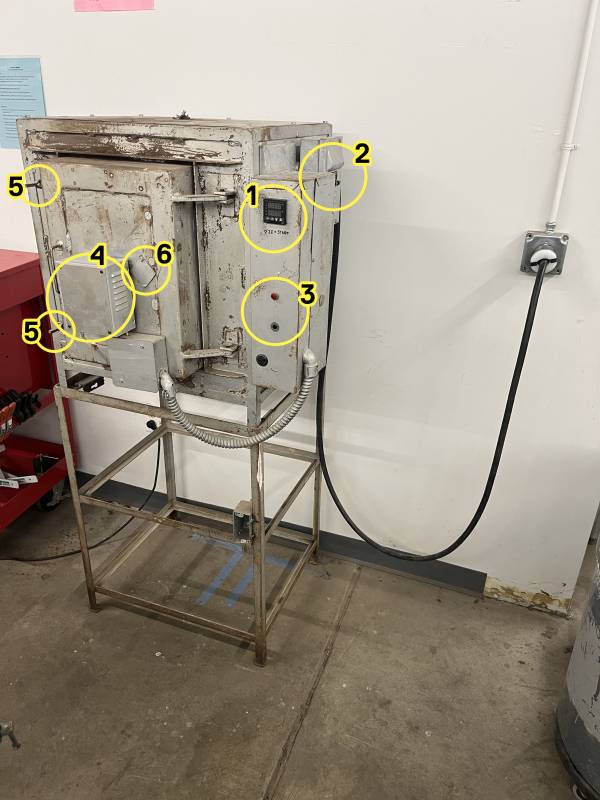
- Controller
- Breaker switches
- Alarm lights (Currently not functional)
- Temperature probe
- Latches
- Viewing port
Controller Anatomy
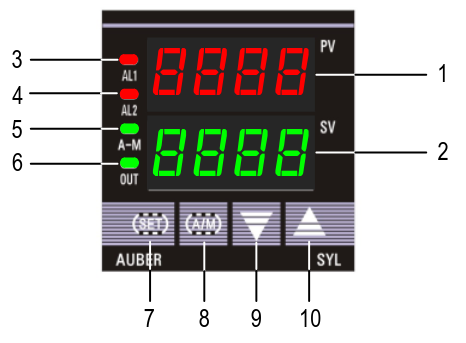
① PV window: Displays the Current Temperature, or process value (PV).
② SV window: Displays the Temperature set value (SV).
③ AL1 indicator: It lights up when AL1 relay is on.
④ AL2 indicator: It lights up when AL2 relay is on.
⑤ A-M indicator: The light indicates the controller operating status.
- When A-M is solid on, program is running.
- When A-M is flashing, program is paused.
- When A-M is off, program is stopped.
⑥ Output indicator: Control output and the power to the heater.
- When the Output indicator is on, the heater is on.
- When the Output indicatoris off, the heater is off.
⑦ SET key: In normal operating mode (Display mode 1), pressing the SET key will switch the display between the temperature, step number and step timer in sequence.
⑧ A/M key: Programming key; digit shift key.
⑨ DOWN key ▼: Decreases numeric value of the setting value. Pressing and holding the DOWN key for 2 seconds will start the selected program if the controller is displaying STOP or HOLD.
⑩ UP key ▲: Increases numeric value of the setting value. Pressing and holding the UP key for 2 seconds will STOP the current program
Controller Display Modes
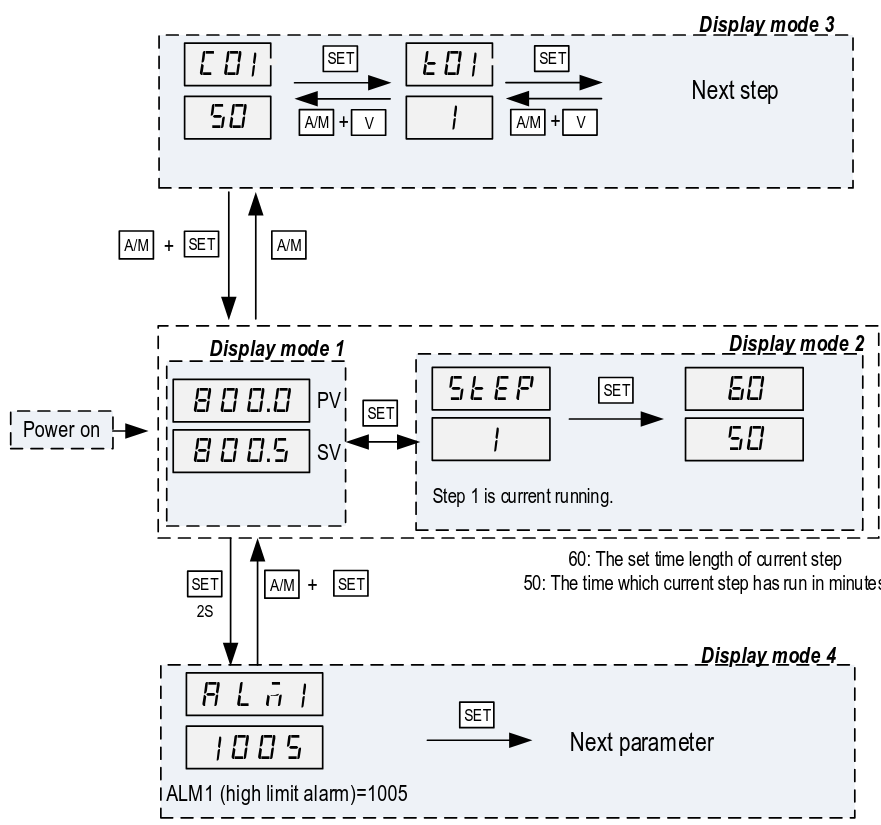
Display Mode 1: Normal operating mode. Following power up, the controller will be placed in Display Mode 1. The upper display window shows the measured value (PV) and the lower window shows the four-digit set value (SV).
Display Mode 2: Checking the step. Press the SET key once to change the display from mode 1 to mode 2. The upper display window shows “STEP” and the lower windows shows the current step number. Press SET key again to show the timer information. PV window shows the set time for the current step. SV window shows remaining time in minutes. Press SET key again to return to the
display mode 1.
Display Mode 3: Programming mode. Press A/M key once to change the display from mode 1 to mode 3. As a member, you will only ever need to adjust C01/T01 values.
Do not assume that the C#/T# values are the same since the last time you ran a program.
Display mode 4: Parameter setting mode. Press and hold the SET key for 2 seconds to enter the display mode 4. The top window shows the name of a parameter and the bottom window shows its value. Use the UP and DOWN arrow key the change the value; use the SET key to save the change and go to the next parameter.
These settings are specific to the machine and must not be changed by members. If you suspect a parameter needs to change, please contact a shop tech and ask for help.
Basic Operation
Setting Alarms
Coming soon.
- Alarms can be set, however the only indication currently is a small light on the controller.
- Alarms are informative only - they do not impact the operation of the kiln.
Setup
Note: If you wait too long while setting the program, it reverts back to the display mode with PV and SET (Stopped if user performs step 2)
To set a program:
- Shut the breaker to turn the kiln and controller on.
- Press and hold the UP arrow key to stop the last loaded program from running.
- The display should be flashing STOP
- Press A/M to enter programming mode (Display mode 3). The display should show C-1 for the last program that was run.
- Note: If step 2 was not performed, the controller will display the active step from the last program run.
- Set the temperature for the first temperature setpoint as follows:
- Use the UP / DOWN keys to set the selected digit of the temperature setpoint (Setpoint in fahrenheit).
- Press the A/M key to select which digit of the temperature setpoint is being modified.
- Repeat steps 4.1 and 4.2 until the desired temperature setpoint is set.
- Press the SET key to save the temperature setpoint and advance to the time setpoint.
- Use the UP / DOWN keys to set the selected digit of the time setpoint (Setpoint in minutes).
- Press the A/M key to select which digit of the time setpoint is being modified.
- Repeat steps 5.1 and 5.2 until the desired time setpoint is set.
- Press the SET key to save the time setpoint and advance to the next temperature setpoint.
- Repeat steps 4 and 5 for all desired time and temperature setpoints.
Programs can be set and changed during operation of a program.
Run a Program
To start a program:
- Press and hold the down arrow button for 2 seconds to start the program.
- Observe that the PV display temperature begins increasing.
The controller display returns to Display mode 1 (displays temperature and temperature setpoint) after 10 seconds of inactivity. To view the current step being executed, press the SET key from Display mode 1. Pressing the SET key a second time will show the programmed time (top number) of the step and the elapsed time (bottom number) of the step.
Stop a Program
To stop a program:
- Press and hold the UP arrow key for 2 seconds to stop the program.
- The display will begin flashing STOP.
Shut Down
- Open the circuit breaker.
- Shut the kiln door.
- Clean up the area.
Cleaning Up
- Remove any personal belongings from the area
No Comments