
Trotec Tool Guide - Flat Cutting and Engraving
Trotec Laser Speedy 300
Manuals:
The Trotec Laser can cut and engrave a variety of materials from a digital file in fine detail.
ProjectsUsageup Highlights
to Bed21"x17" sizewill isfit 21in xthis 17"
laser.
SAFETY |
CARE |
CLEANUP |
|
1. Always keep the lid closed, do not tamper with the safety switches on the lid. |
1. Do not force the lid open higher than the shocks allow. |
1. Vacuum up small parts, clean catch tray when numerous small parts have fallen between the honeycomb. |
|
2. Cut and engrave approved materials only. |
2. Handle the honeycomb table carefully, bent surfaces cause cuts in the underside of the materials. |
2. Place the rotary tool back in the storage cabinet. |
|
3. Be sure both fans are operating. |
3. Submit a maintenance request when needed. |
3. |
Personal Protective Equipment
Noise cancelling headphonesClothing and closed-toed shoes of natural materials that will not melt to skin (i.e. cotton, denim, leather) if they catch fire.Gloves may be useful to keep hands clean and avoid cutting skin on sharp edges.
Tool Anatomy
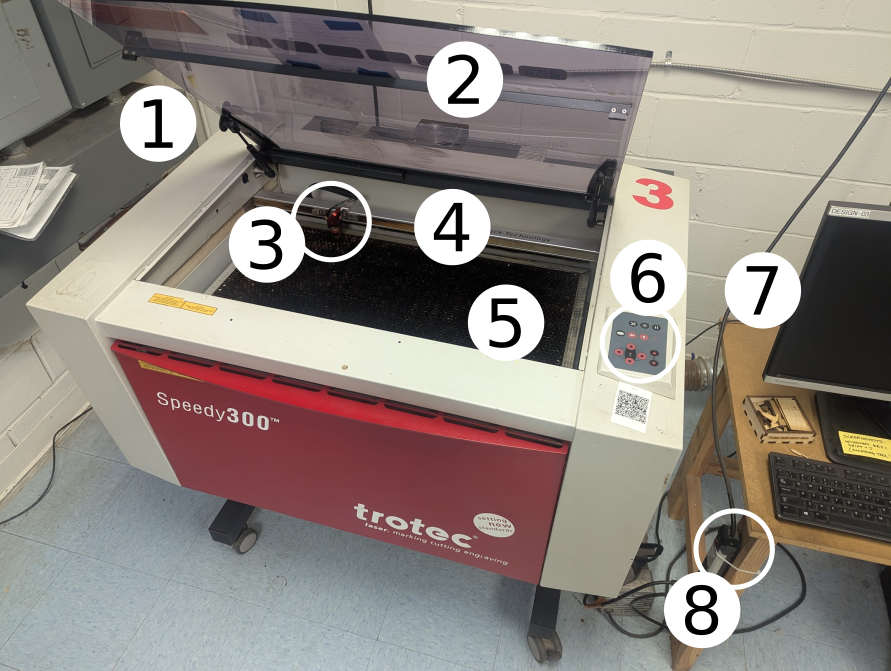
-
Power Switch - on/off switch, located on the back left of the machine
- Lid
-
Lens carriage
- Gantry
- Bed
-
Control panel
- Desktop computer
-
Exhaust switch - activate the power strip to pull smoke from the bed to outside
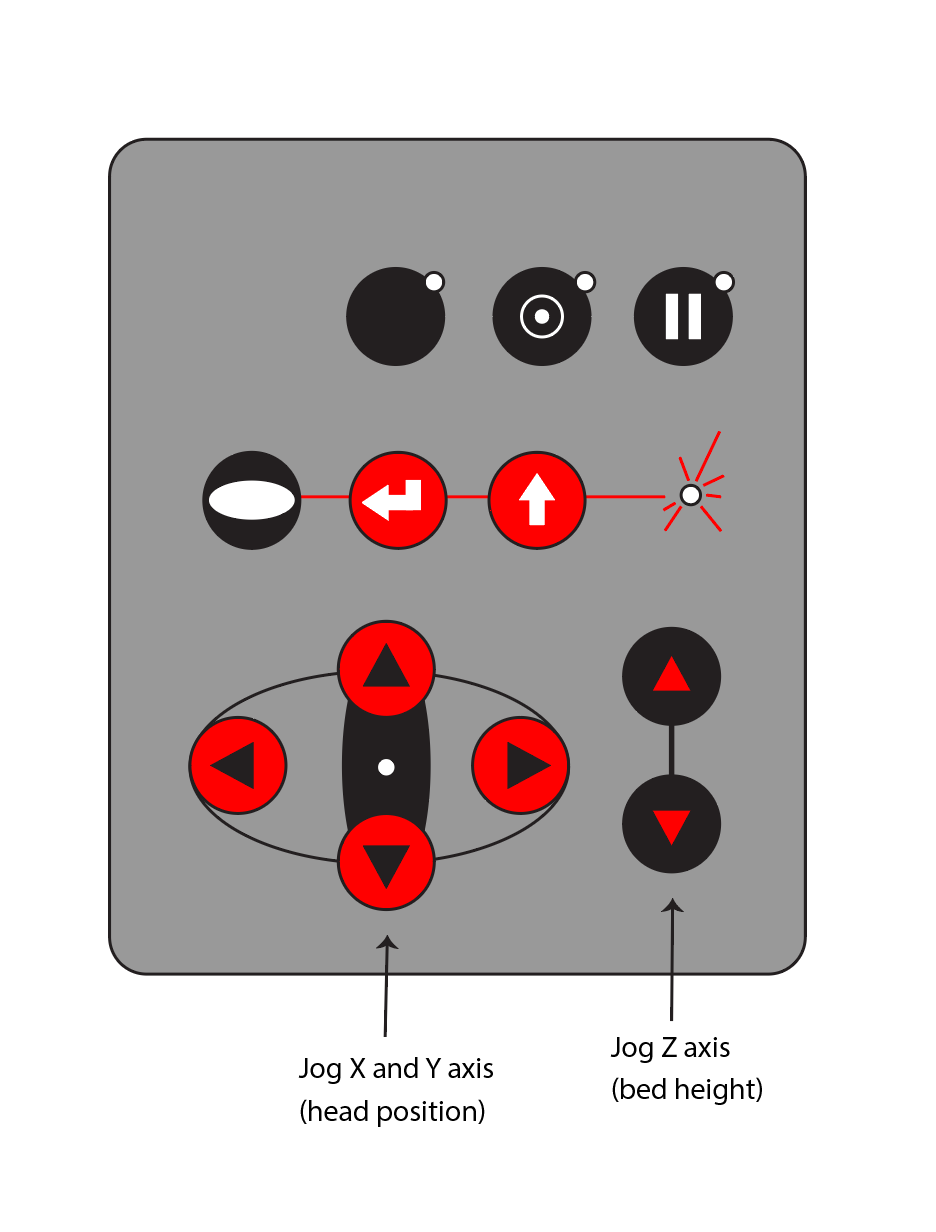
CONTROL PANEL
Tool Safety
Common Hazards
- The lid of the machine protects against stray emissions and eye damage. The lid should always be shut when in use, there are switches to automatically turn the laser off when the lid is opened. Immediately report any problems with the lid.
- Ventilation: Make sure the fan is on before cutting.
- Flames: Watch for flames and pause the laser and use spray bottle with water if a flame develops.
- Cuts: Bodily hazard of being cut by your own sharp material.
- Toxicity: Only use approved materials on the machine to avoid creating toxic gas.
- Noise: The combined sound of the Trotec motors and the Rabbits is LOUD! Noise cancelling headphones recommended.
PROHIBITED MATERIALSMaterials
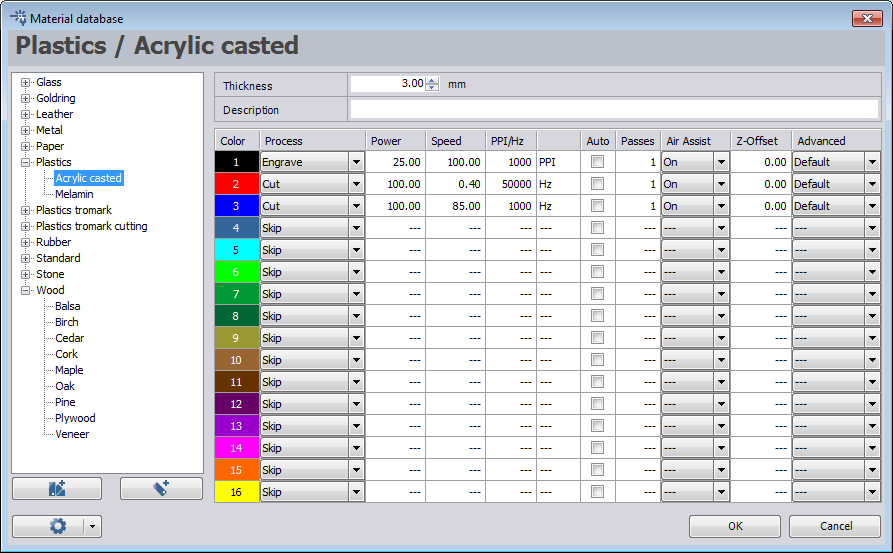
Many You can use any vector based software to design your artwork as long as it can export files using file types .svg or .ai. Save your file to a USB thumb drive and bring that to the computer. Open Adobe Illustrator on the desktop computer. New from template> Desktop > Template Trotec*. This template contains the palette below as well as the Graphic Styles palette where red and black are already set up. Copy and paste your artwork into this document. The software that this machine is picky about the line types it can use. Make sure your cutting lines are 0.001 stroke width and the colors are as listed as in the chart below for them to be read. Print - Job Control will start Save files as svg The TROTEC JobControl allows the selection of 16 different colors in the material templates to specify 16 different power levels during cutting or engraving. When using this function, the colors in the graphics program must match exactly the colors listed in the TROTEC JobControl (on using Corel draw make sure that color management is OFF). In some graphics programs these Basic colors are already predefined, with other programs, you must define each color separately with its RGB components first. If the 16 driver colors are not automatically available in the software, use the values in the following list: * This set of colors can be found in the Trotec template on the desktop. Corel Draw RGB defaults to these. (double check) The Job Control software functions more like a driver for a desktop printer, in other words, you can't open files directly in Job Control, they need to run through a vector draw program "Print File" dialog boxes. There are three levels to this: Materials Settings: Use a thickness and material that best matches. Click OK, then the JC Button, Then JC on the original screen. Job Control will start. Your artwork will appear on a panel on the right hand side in the “Jobs” panel. Click and drag to add it to the bed. The art can be placed on any of the intersections of the crosshairs or directly on center.If the Add more here! Settings for this machine are stored in an internal It's recommended to look up the desired material and thickness in theemit
Material
Danger!
Chlorinated plastics (PVC/plastic #3, vinyl, artificial leather, Moleskin notebooks, polymer clay, Sculpey)
Emits chlorine gas
Polycarbonate/Lexan
Cuts poorly, absorbs laser, discolors, maymelt, catch firetoxic fumes cut ABSwith Emitsa cyanideCO2 gas,laser. melts,
Consult burststhe into flame
HDPE (plastic #2/milk bottle plastic)
Catches fireallowed and meltsbefore cutting Polypropyleneor foamengraving (plasticnew #5,materials, foamcore,and styrofoam)
Catches fire
Fiberglass
Emits dangerous fumes
Coated carbon fiber
Emits dangerous fumes
Pressure treated wood
Emits dangerous fumes
Galvanized metal
Emits dangerous fumes
Mirrored surfaces, including uncoated metal
Will not cut, reflects laser beam, potentially damaginguse the lens.settings on as Mysterythat materialRefera tostarting the Materials Safety Datasheet MSDS or Safety Data Sheet (SDS)point for anythingyour notproject.
listed above.
File Setup
Using ADOBE Illustrator
Using Corel Draw
Document color setup
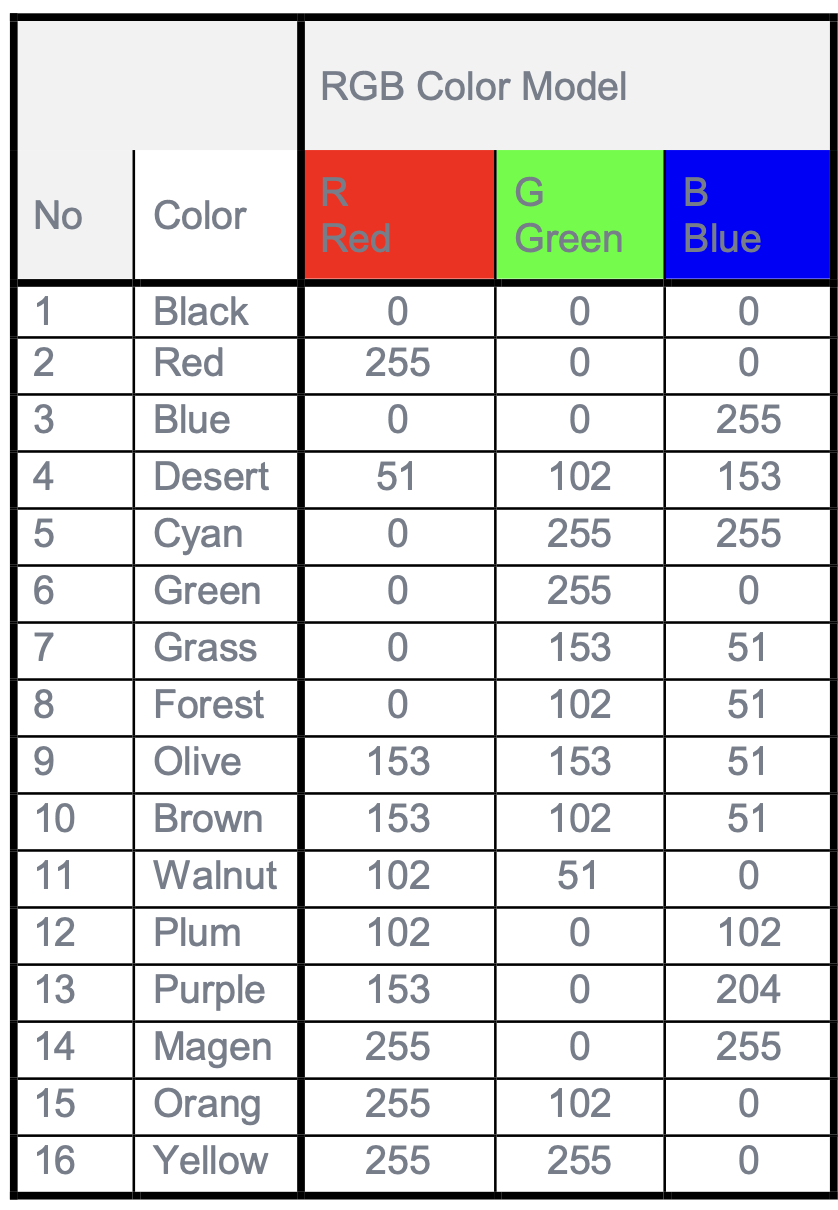
Machine
Initial Setup
SETUP CHECKLIST
Job Control
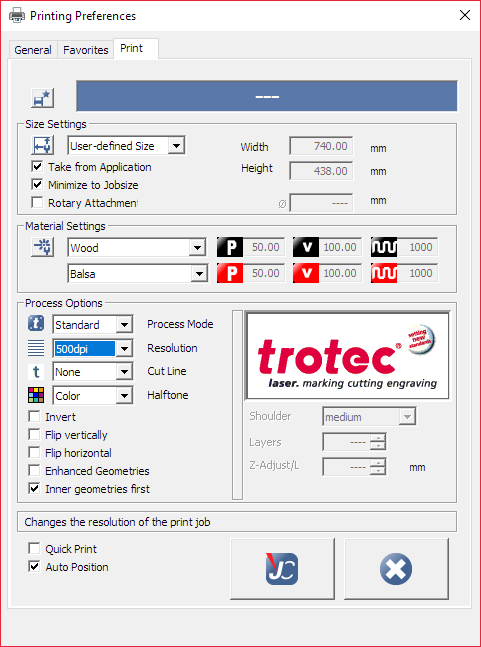
 (Ctrl + I)
Common
COMMON SETTINGSSettingsdatabase.database that is editable by members.
Addand more here!
CONSUMABLES
Some approvedprohibited materials canlistonlyto bemake etchedsure power, speed, and notother cutsettings usingare thiscorrectly machine. You may purchase your own material, purchase from our consumables store, or use material from the laser scrap bins.
|
|
|
|
|
|
|
|
|
|
|
|
|
|
|
|
|
|
| ||
|
|
|
|
|
|
|
|
|
|
|
|
set.
Basic Operation
|
OPERATION BREAKDOWN
-
Power on the machine. The switch is on the back of the machine on the left side, near the circuit breakers.
-
Power on the exhaust fan by turning on the power strip on the front left leg of the desktop computer table.
-
Connect the machine and Job Control by clicking the USB port button in the bottom right corner.
-
Add your material. Open the lid and place your material on the bed. You can secure the material using wood clips. This bed is made of aluminum and therefore is both delicate and not magnetic.
-
Move the head over the material. Hang one of the focus measuring pieces on the laser head and raise the bed slowly until the piece falls off.
-
Move the head to your origin
-
Close the lid
-
Cut using Job Control
-
Watch your job to make sure it goes smoothly. If you notice a problem, you can:
A. pause the job with the pause button on the control panel.
B. Pause using the Job Control Software. (the pause button on the machine panel will not allow a restart of the job, using pause in the software will let you finish where you left off.
If your material catches on fire, pause the job and use the water spray bottle to extinguish it.
Cleanup
|
Scrap SCRAP BREAKDOWNBreakdown
There are two black scrap bins reserved for laser waste. Maintaining these is a shared, communal responsibility.
When you notice the scrap bins are full, it’s time to take it to the dumpster out back. Feel free to enlist a helping hand.
If you notice valuable material while emptying the bins, use your judgment to selectively save a few pieces or take it home for your personal use.
MAINTENANCE REQUESTS
Update the physical Maintenance Tag at the machineYellow can be used with cautionRed cannot be used without hazard to either the user or the equipment
Record issues atprotohaven.org/maintenance. This notifies our staff and volunteer maintenance crew of any issues
Troubleshooting
Common Issues |
Possible Causes |
Resolutions |
| Job control WSIWYG doesn't show all lines in a cut or engraving | Not using the correct line weight or colors. | Use the Illustrator template "Trotec Template" |
| The honeycomb bed doesn't show up in JC, I see the rotary tool | The last setup was for the rotary tool. | Go to Settings/Options/accessories and uncheck rotary tool, check honeycomb bed.**Valerie check! |
| My parts don't fit in the JC engraving area | The last setup was for the rotary tool |
Print setup + + +**Valerie check! Set to "Bed Size" |
Special Setups
Rotary tool
The Trotec can engrave on cylindrical materials - thistumblers, isglasses, apipes, separateetc.
Read the Trotec Rotary Tool Guide for details on how to set up and clearance.
Additional Resources
Where can one find materials, tools, or other consumables (either local or online vendors)?
What helpful video tutorials are there where one can dive deeper into operating this tool?
If this is a CNC tool, where can one learn more aboutuse the CAD,rotary CAMtool or CAD software?
attachment..
Staff-Use
AUTHORIZED MAINTENANCE CREW ONLY
If you are part of the maintenance group please log on to the #maintenance channel of our Discord server to:
Perform a Maintenance ActionRequest a Maintenance PurchaseReview complete Maintenance Logs for each machineGenerally chit-chat about maintenance
|
What preventative maintenance areas does the manual indicate? For example, a regular oil schedule, how often to tension belts/blades, and when to change a filter.
This is the area to simply name the topic, frequency, and page number where more information can be found in the manual.
Links to helpful videos or additional resources would be a helpful secondary source.