Conference room teleconferencing
Overview
The teleconferencing equipment in the conference room consists of:
- A rolling stand with a TV
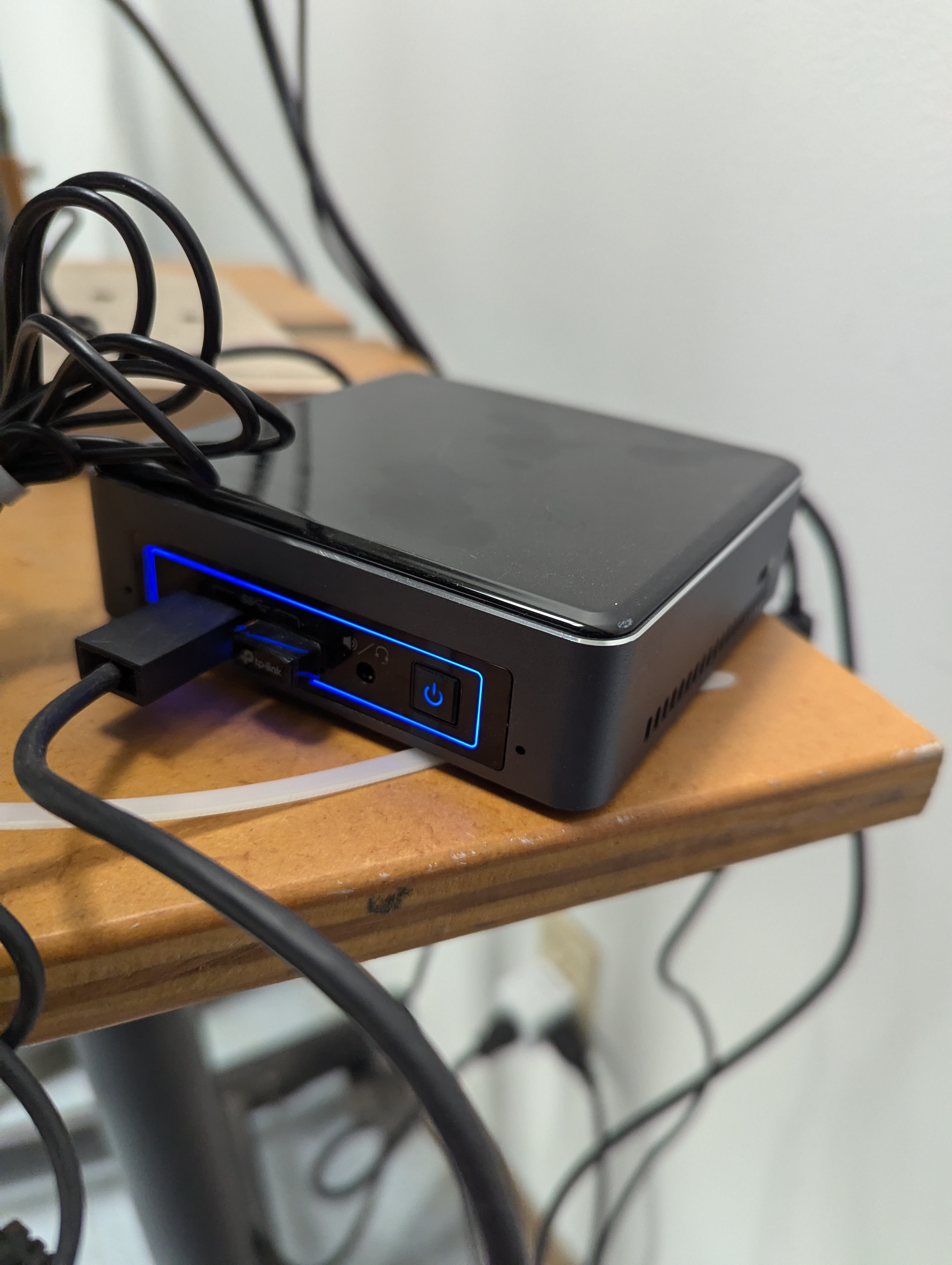
- A linux-based controller box that runs Zoom (other software maybe installed if needed)
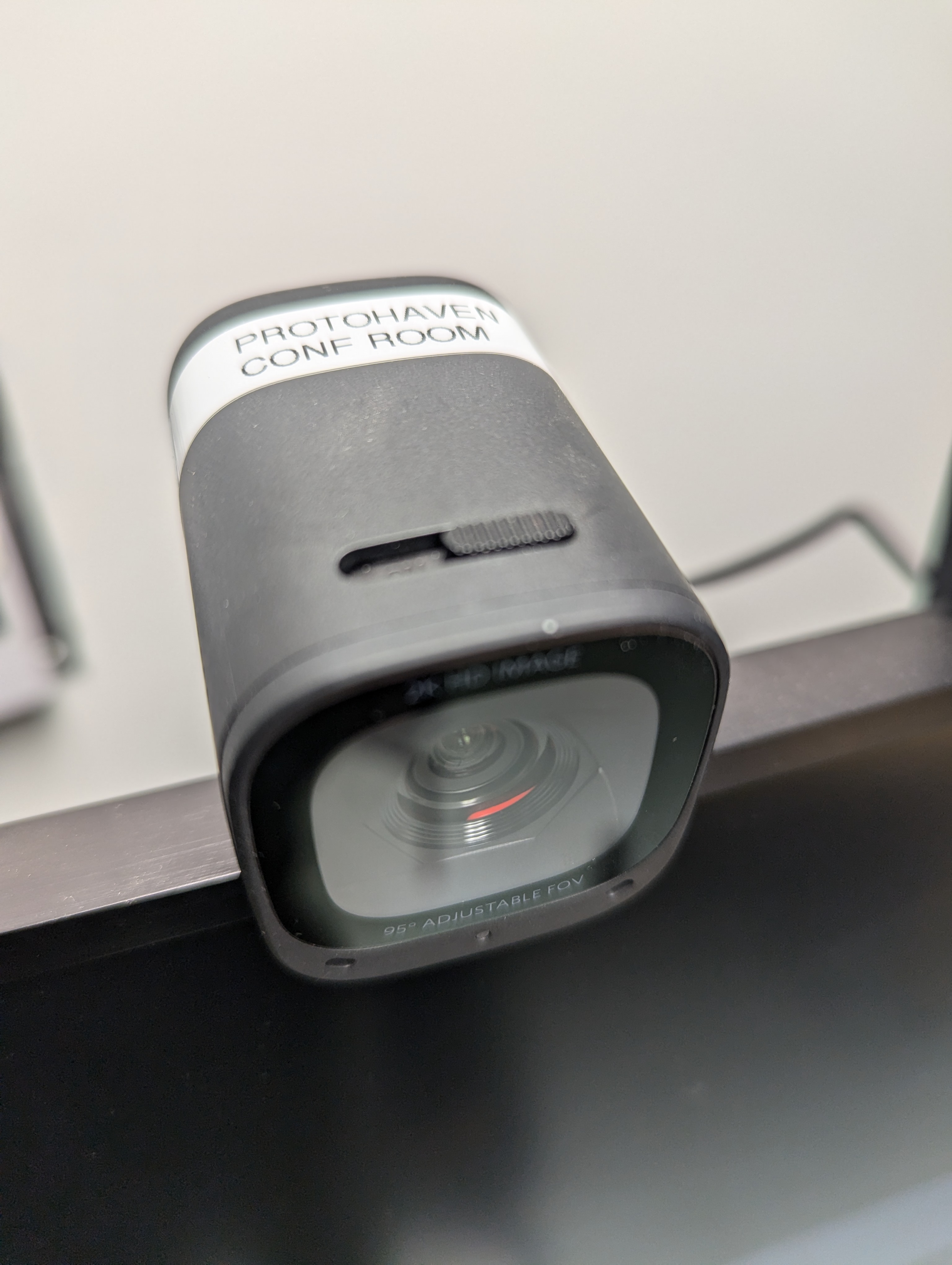
- A wide-angle camera (located on top of the TV)
- An EMEET speaker/microphone unit that lives plugged into a USB charger on the conference room table
Starting a zoom meeting
- Ensure the TV and the controller are both plugged in and turned on. The TV has a power switch behind the screen on the left side; the controller has a power switch on the front right side:

- Mash a few buttons on the keyboard or click the mouse if the screen is inactive, to wake the system up.
- If Zoom is not already open, click the icon on the left side of the menu to open it.
- If Zoom is not already logged in, use the username
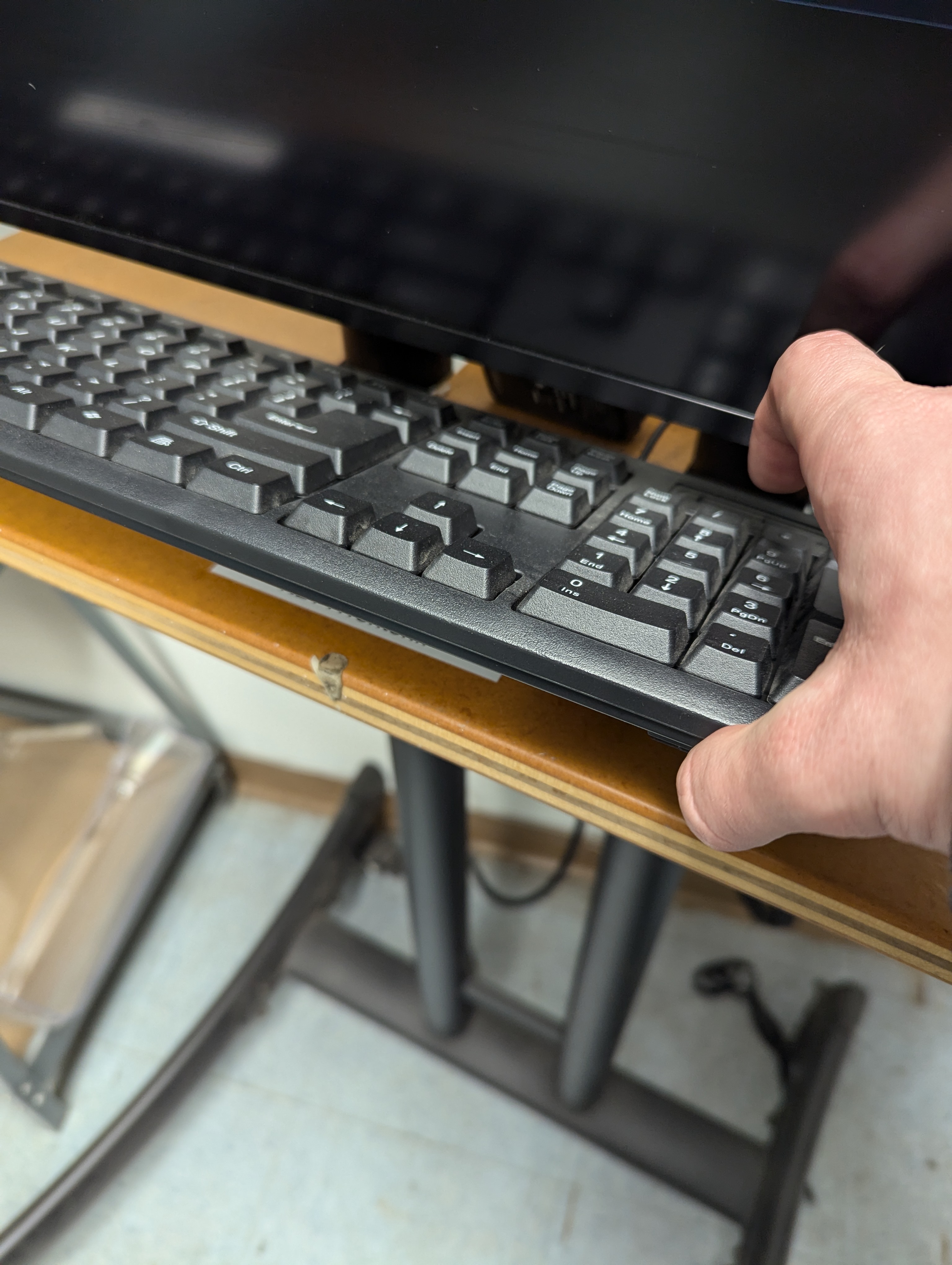
purchasing@protohaven.organd the password located on the wooden stand beneath the keyboard to do so:
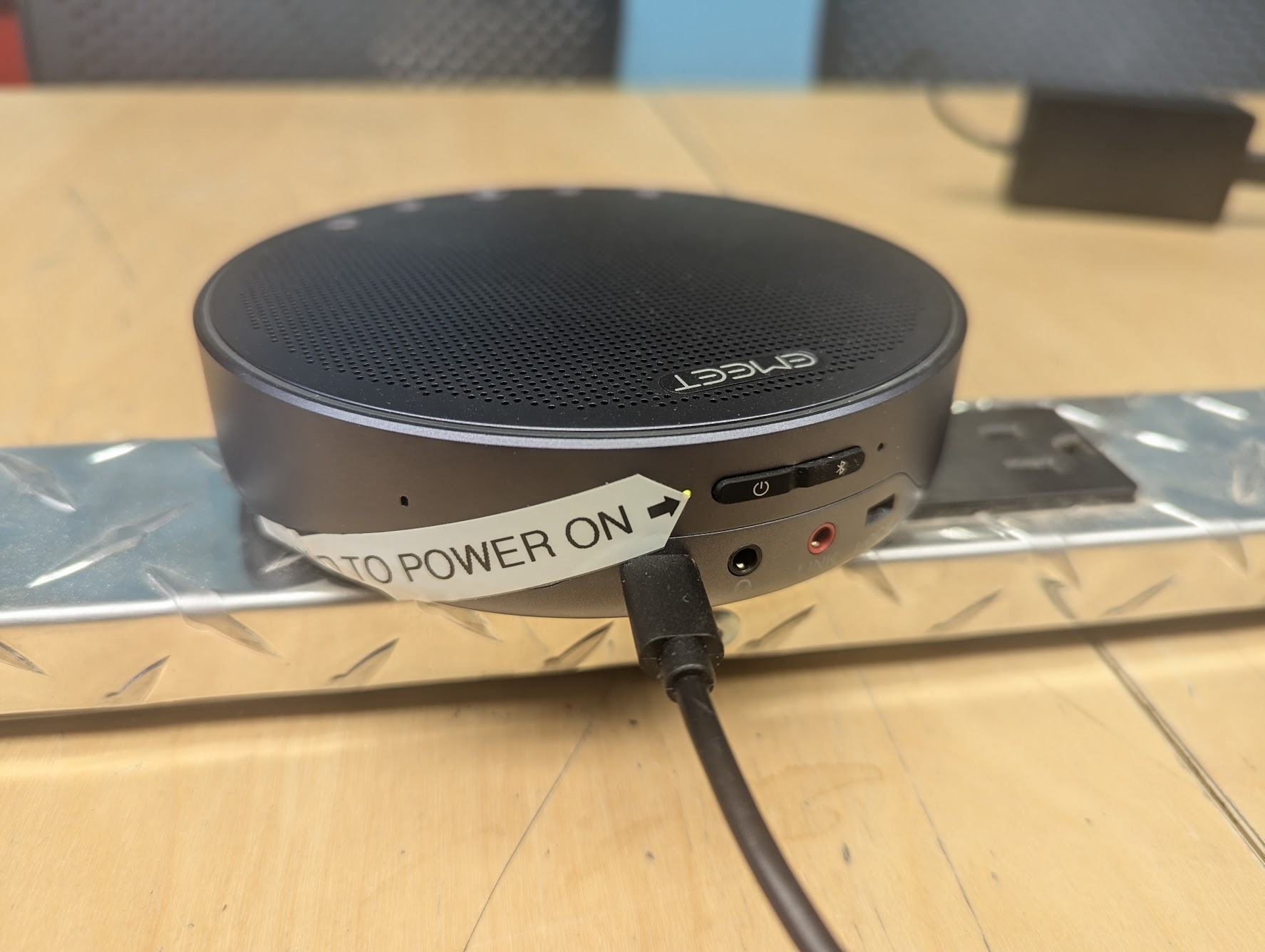
- On the table, you'll find a circular device labeled EMEET. This is a combo microphone/speaker which provides directional "listening" and better removes noise in the shop than what the camera's microphone would otherwise provide:
Turn this device on by pressing and holding the power button for 5 seconds. You will hear a startup beep, a "sonar ping" sound as it tries to connect to the controller via bluetooth, and finally a happy chirp when it connects. The light next to the power icon will turn blue.
- Proceed to connect to your meeting using the Zoom app interface.
Troubleshooting
The TV is not showing anything
The controller may be frozen. Press and hold the controller's power button until the blue light is replaced by a yellow one - then release, and press/release the button to turn it back on.
No video appears when in a call
The camera has a physical shutter switch on top to block video - ensure it's slid all the way to the right side so that the lens is visible.